Everything it does, and how it looks

VidFeather is a native Mac app with three panes: where your videos come from, the list, and the details of what you selected. Here is each part.

Find what is taking the space

The library view lists every video in Photos that is 4K or larger, with its thumbnail, date, length, resolution, frame rate, codec, size, and the size it will likely be after. Sort by any column, search by name, hide columns you don’t need.

  • HDR and Dolby Vision badges appear as VidFeather reads each clip in the background. You can start working before it finishes.
  • Clips that live only in iCloud are listed too. Nothing is downloaded just to show them.
  • Copies you already made are recognized, so they are never compressed twice.
  • Videos that are not in Photos work as well: drag in files or whole folders.
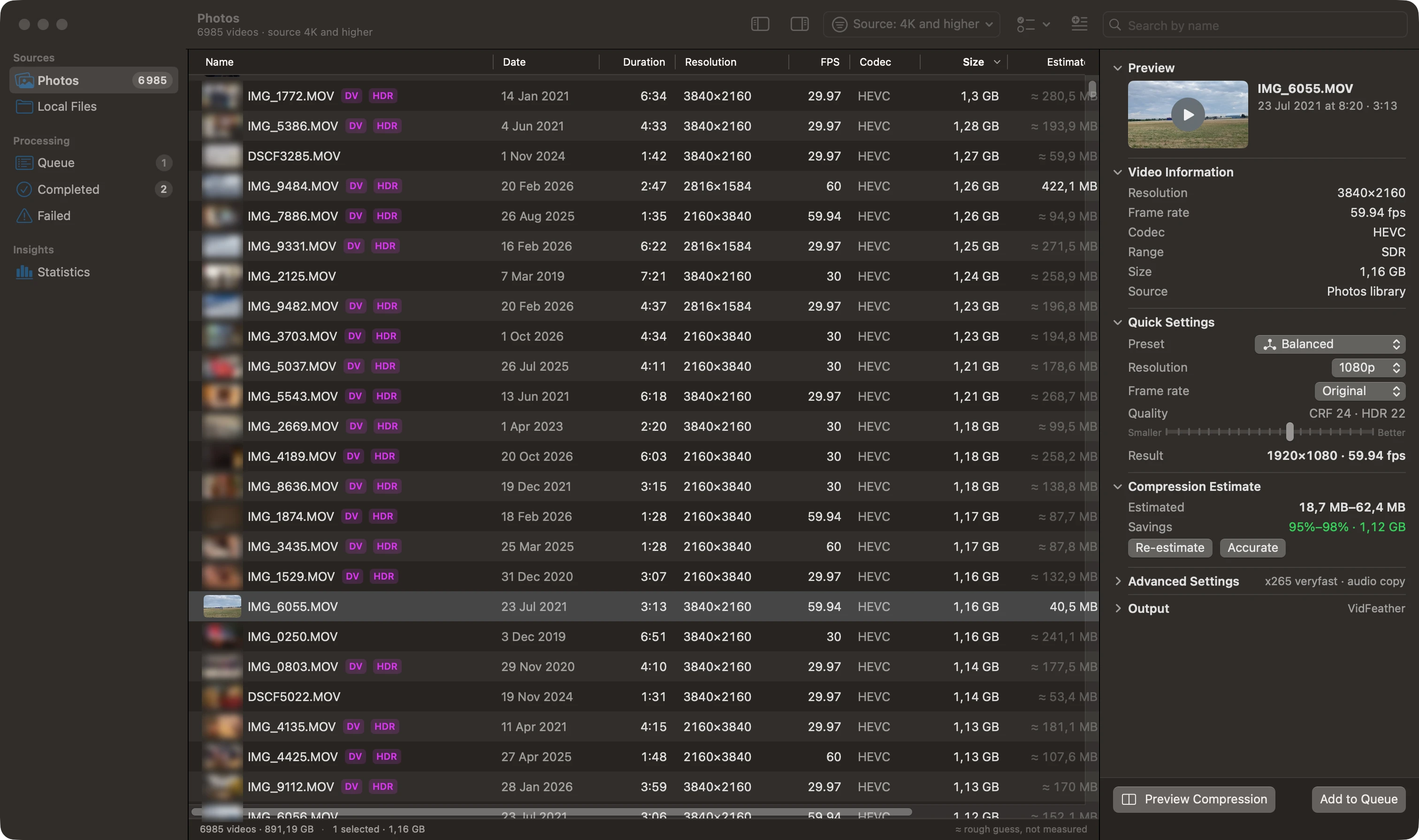
VidFeather library view with clips sorted by size and the inspector open
Thumbnails blurred for privacy.

Choose how small, with a real estimate

Pick a preset or set your own size, frame-rate limit and quality. Vertical videos stay vertical and nothing is ever enlarged. The frame rate is a limit, not a target: a 25 fps clip stays 25 fps under a 30 fps limit.

Quick Estimate encodes three 5-second pieces of the clip with the exact settings of the full run and tells you the range the result will land in. Accurate uses ten pieces.

Original Quality
Original size and frame rate, highest quality setting
Balanced
Up to 1080p. The default, and what most people want
Compact
Up to 1080p, a little more compression
Maximum Savings
720p, up to 29.97 fps, for clips you just want to keep
Custom
Any size from 480p up, any frame-rate limit, your own quality

Compare up to six versions

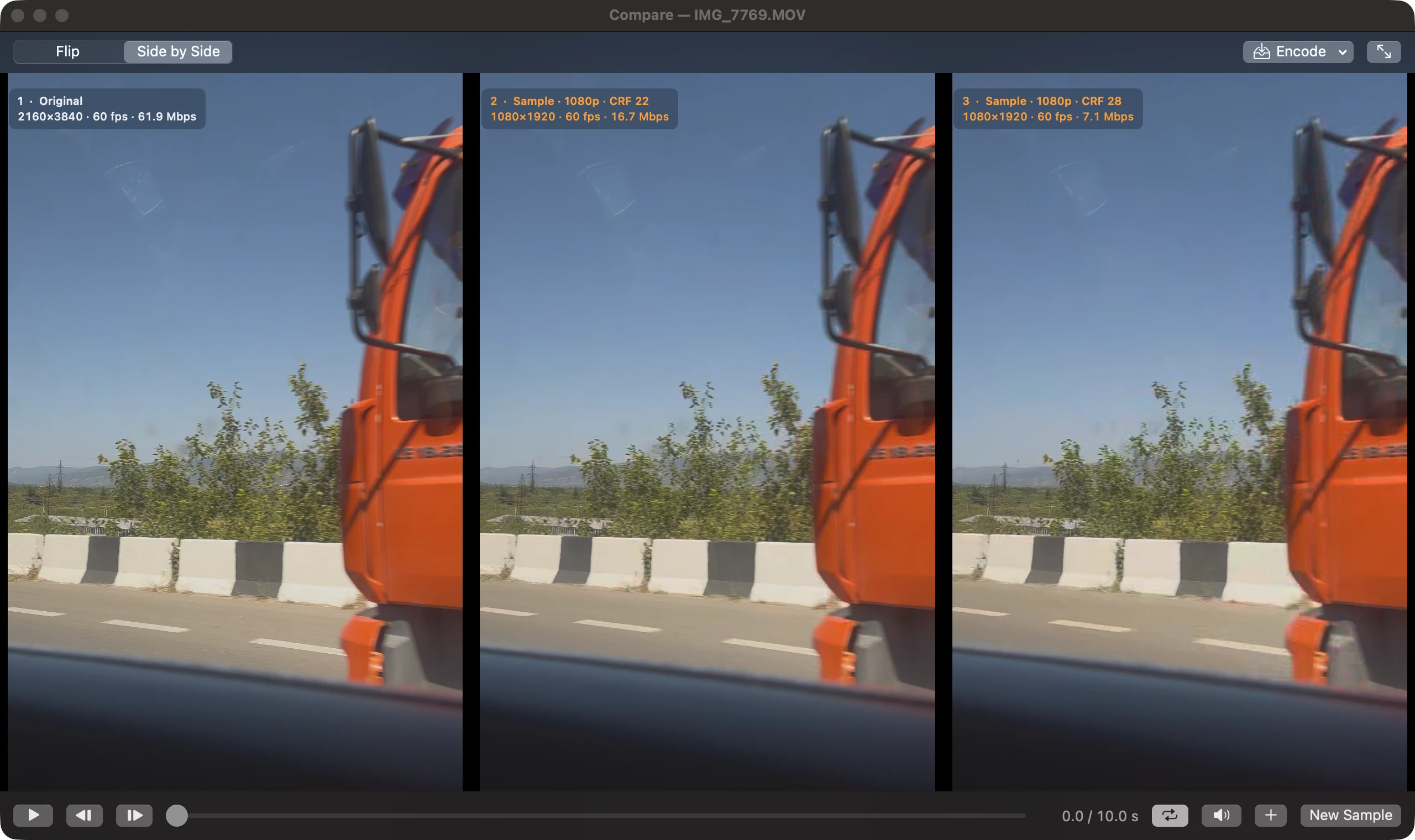
Choose a moment, encode 5 to 20 seconds of it in several ways, and watch them together. Side by Side shows every version at once; Flip shows one at a time in the same spot so the smallest differences jump out. Playback, seeking and frame stepping stay in sync, even between 30 and 60 fps versions.

Compare window with the original and two compressed samples side by side
The original next to 1080p samples at two quality levels, each labeled with its real bitrate.

A queue you can leave running

Each job remembers the settings it was added with, so you can queue different clips with different presets and walk away.

One clip at a time
Your Mac stays usable, and every job finishes cleanly before the next starts.
Survives restarts
The queue is saved. A job interrupted by quitting starts again from the beginning.
Pause, cancel, retry
Pause after the current clip, cancel it outright, retry a failed one, drag to reorder.
Starts by itself if you like
Turn on “Start Queue Automatically” and clips begin as soon as you add them.
Shows what your Mac is doing
CPU temperature, fan speed and an estimate of the time left.
Keeps a record
Every event goes to a journal, and a report.csv sums up the run.
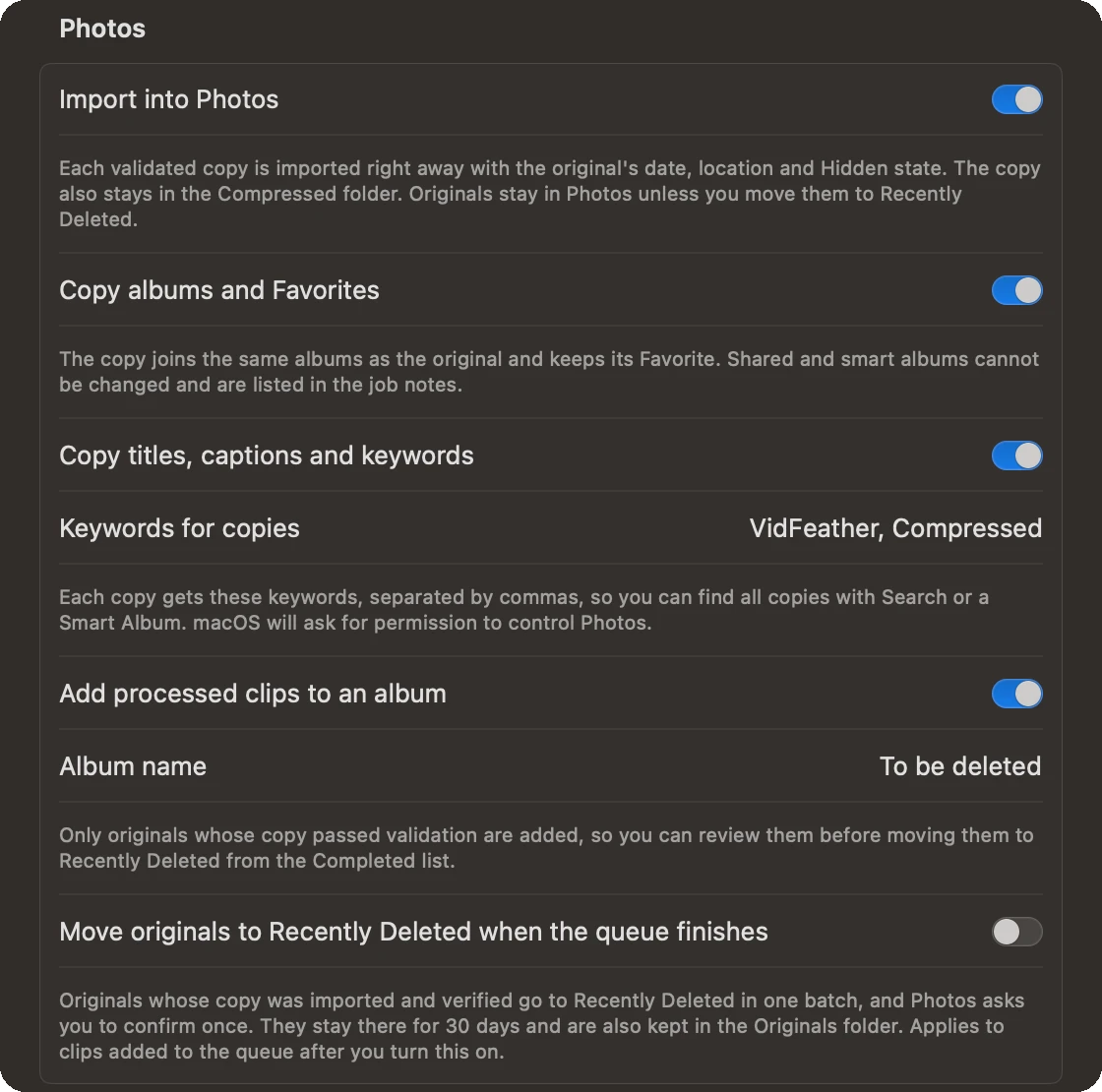
Photos settings: import into Photos, copy albums and Favorites, copy titles, captions and keywords

Copies go back where the originals were

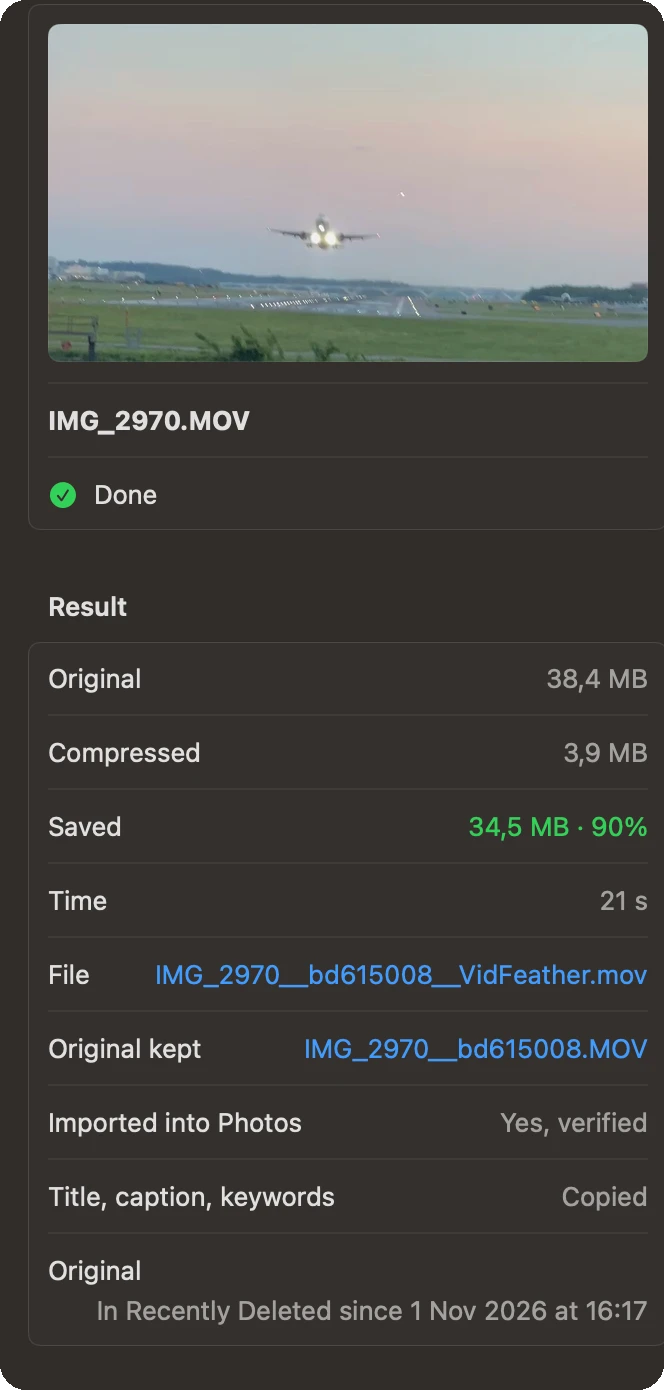
As soon as a copy passes its checks, it is imported into Photos with the original’s date, location, Favorite and Hidden state, straight into the same albums. Title, caption and keywords follow through Photos’ own scripting support, which macOS asks you to allow once.

Every copy also gets keywords of your choice, “VidFeather, Compressed” by default, so a Smart Album can gather them all. And the originals are collected in an album called “To be deleted” for you to review.

Checked twice, then reported plainly

Every result is checked before import: format, size, length, date, location, camera, HDR, Dolby Vision, and whether macOS can actually play it. After import, the copy is read back from Photos and compared with the original again.

Anything that did not carry over, like a shared album Photos won’t let apps change, is written in the job’s notes in plain words.

The full list of checks
A completed job: imported into Photos and verified, title, caption and keywords copied

Removing originals is always your move

On the Completed screen, select jobs and press Move Originals to Recently Deleted…, or use the button on a single row. It is only available for clips whose copy is in Photos and matched. macOS shows its own confirmation, and the originals wait in Recently Deleted for 30 days.

If you already deleted a copy from Photos yourself, VidFeather notices and warns you before its original goes too. Prefer to do it all at once? An option moves originals after the whole queue finishes, still with one macOS confirmation.

Where things are kept

~/Movies/VidFeather/
  Originals/    originals of finished clips
  Compressed/   the smaller copies
  Temp/         work in progress
  journal.jsonl
  report.csv

The work folder can be moved anywhere, including an external drive.

Quiet mode

Set a fan speed you can live with, and VidFeather slows the encoder just enough to stay under it, moving work to the efficiency cores and pausing between bursts. You can turn it on and off in the middle of a clip. If another app is what keeps the fan busy, VidFeather stops slowing down and tells you so.

See the measurements

Keyboard shortcuts

SpacePreview the selected clip
⌘OAdd files or folders from your Mac
⌘↩Add selected clips to the queue
⇧⌘RScan the library again
Tab, ⇧TabFlip between versions in Compare
1 – 9Jump to a version in Compare

Private by design

VidFeather works entirely on your Mac. It has no account, no analytics and no crash reporter, and it never uploads a video, a file name or anything about your library. It goes online only to activate a Pro license.

Privacy policy

Ready when you are